> For the complete documentation index, see [llms.txt](https://docs.viverse.com/llms.txt). Markdown versions of documentation pages are available by appending `.md` to page URLs; this page is available as [Markdown](https://docs.viverse.com/monetization/premium-content-and-channel-subscriptions.md).
# Premium Content & Channel Subscriptions
This page details the process for VIVERSE players to purchase content.
***
## Setting Up Content for Purchase
Premium content and channel subscriptions are **currently in beta** with a manual setup process, but we are working to automate this process in the near future. The first requirement for for setting up purchase-able content, is to join the [VIVERSE Partner Program](/monetization/monetization-on-viverse.md#joining-the-viverse-partner-program). Once you are officially a VIVERSE partner, [email the VIVERSE team](mailto:michael_morran@htc.com?cc=brooke_chen@htc.com\&subject=Request%20to%20set%20up%20a%20subscription%20%2F%20premium%20content\&body=Hello%20VIVERSE%20Team%2C%0A%0AI%20would%20like%20to%20request%20help%20setting%20up%20a%20channel%20subscription%20%2F%20premium%20content.%0A%0AHere%20is%20a%20link%20to%20my%20content%3A%20%7Blink%20to%20complete%2C%20viverse-hosted%20URL%7D.%0A%0AHere%20is%20the%20description%20I%20would%20like%20players%20to%20see%20when%20choosing%20whether%20to%20purchase%20my%20content%3A%20%7Bdescription%20of%20what%20your%20content%20offers%20users%7D.%0A%0AI%20would%20like%20to%20list%20my%20content%20for%20%7Binsert%20price%20in%20USD%20for%20content%7D.) with a request for setting up your premium content/subscription. You must include the name of your content / subscription, a description of what it offers users, and your desired cost in USD for the monthly subscription / one time purchase.
For the 1st year, VIVERSE will pay you 90% of net revenue (after processing fees & taxes) before shifting to 80% for the remainder of the time your content is listed.
## Support for Content Purchasers
The [VIVERSE Support Page](https://support.viverse.com/hc/en-us/articles/43360304923277-Purchasing-and-Subscribing-to-Content) is the main resource for players who need help with channel subscriptions or content purchases. However, it is important for creators to know about this process and to be able to help guide their players through the process...
## How Players Purchase Content
Follow these steps to discover and purchase content from your favorite creator...
{% stepper %}
{% step %}
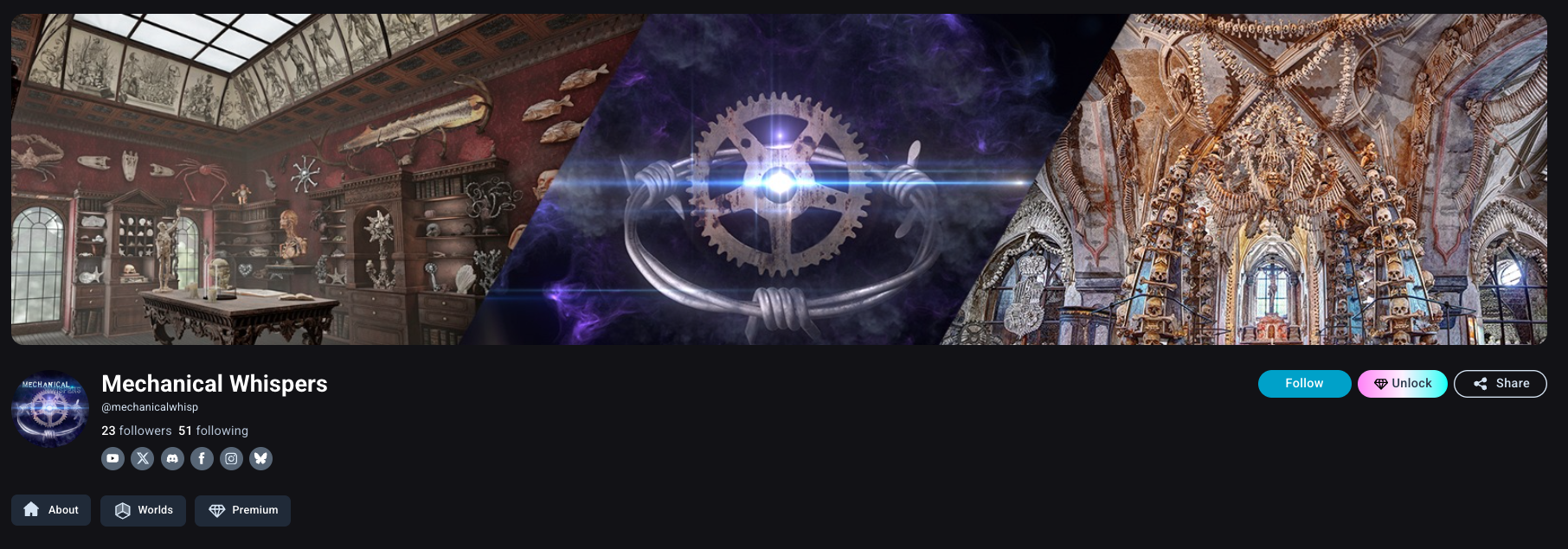
### Go to Creator Profile
Navigate to the profile of the Creator whose content you would like to purchase
{% endstep %}
{% step %}
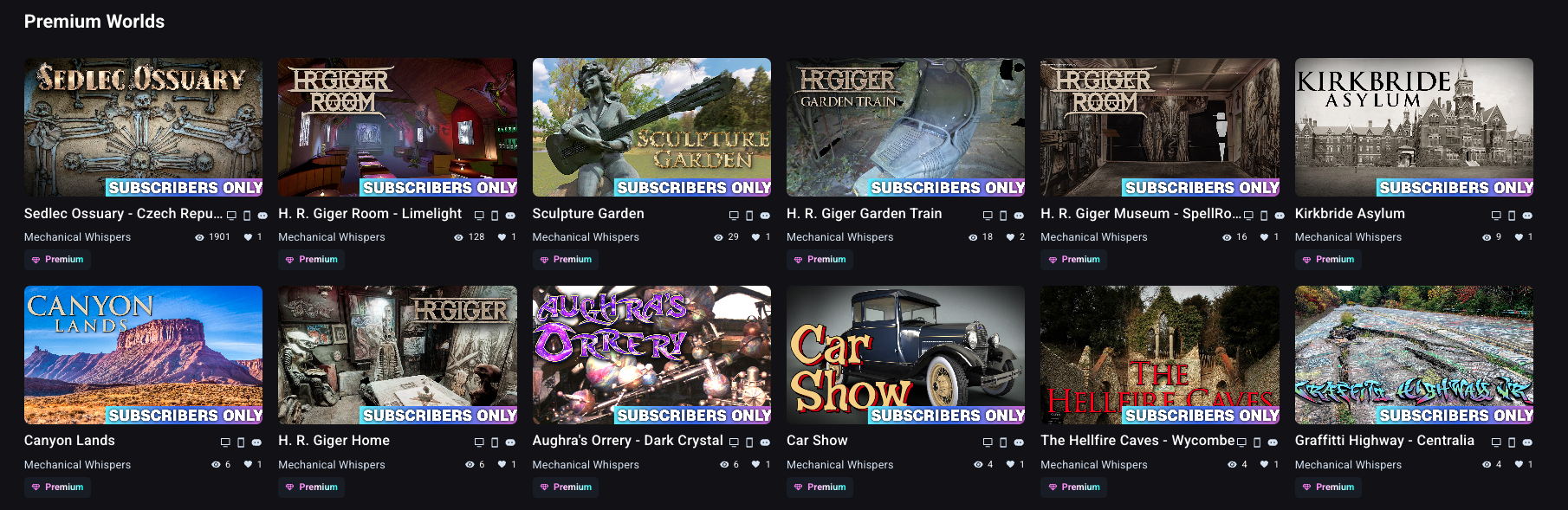
### Browse Premium Content
Scroll down to the "Premium Worlds" section of the creator's profile and select the content you would like to purchase
{% endstep %}
{% step %}
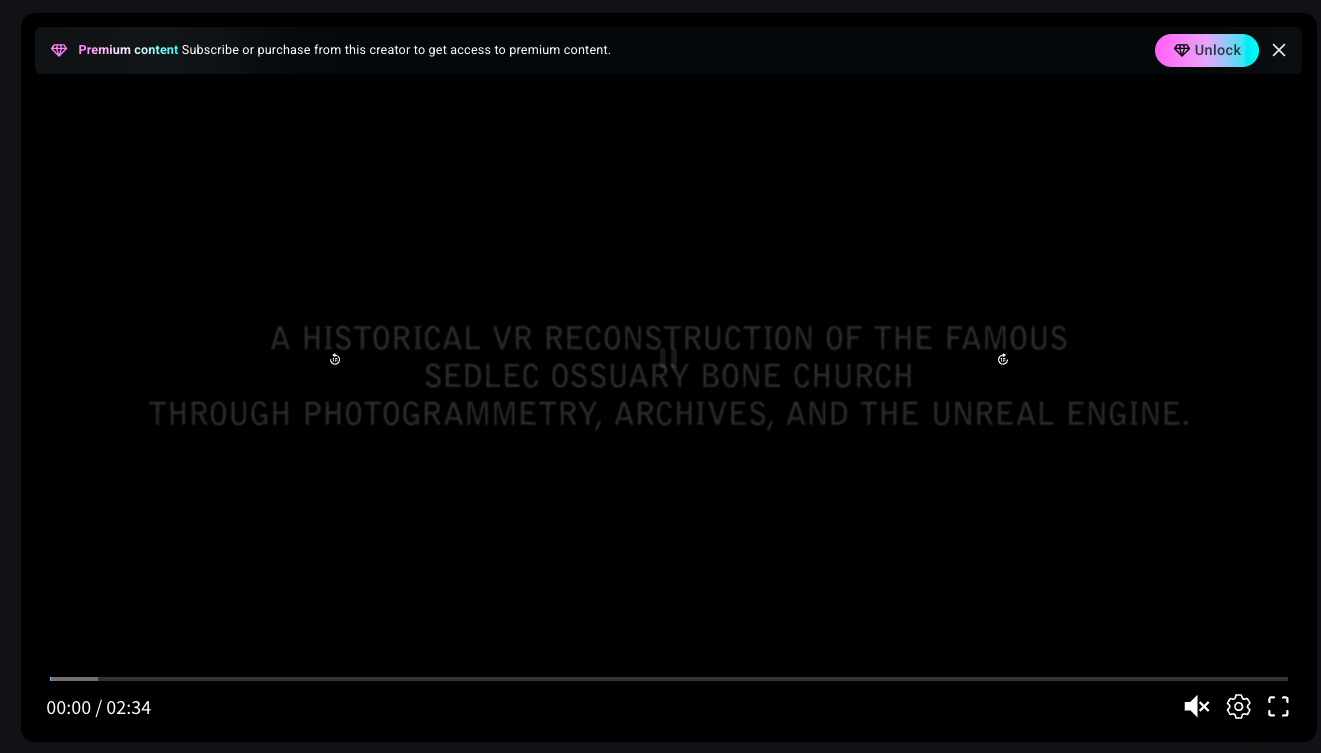
### Select "Unlock"
When attempting to access premium content that you have not purchased yet, select "Unlock" to initiate a purchase.
{% endstep %}
{% step %}
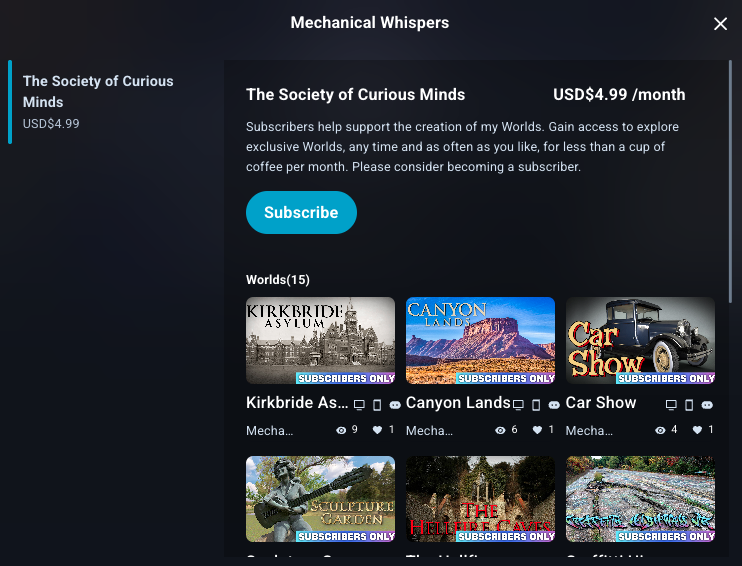
### Confirm Selection
You will automatically be redirected to the Creator's content options. Confirm that you are selecting the correct world or subscription, and select "Subscribe"/"Purchase" to continue.
{% endstep %}
{% step %}
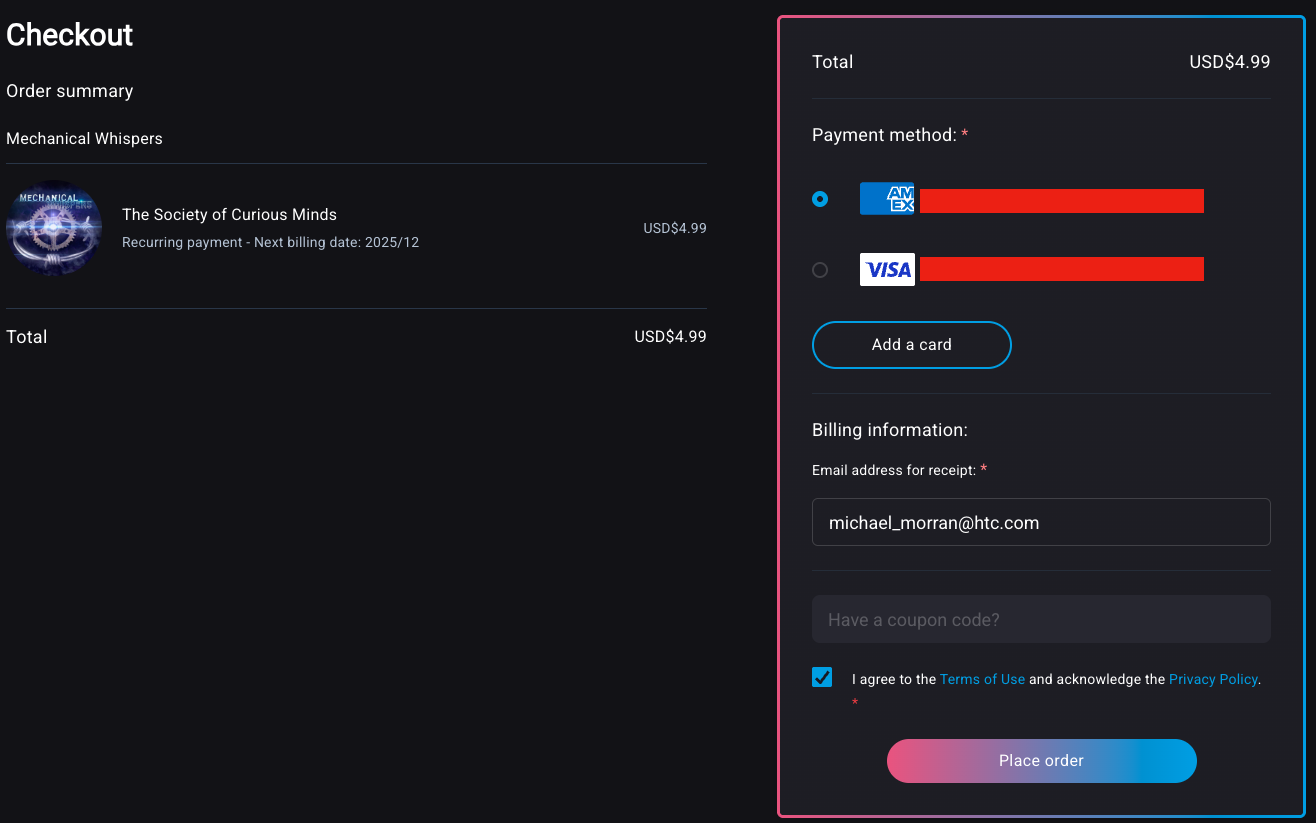
### Checkout
You will automatically be redirected to the Creator's listing on marketplace.viverse.com. Select an existing card or add a new one, agree to the VIVERSE terms and conditions, and press "Place Order".
{% endstep %}
{% step %}
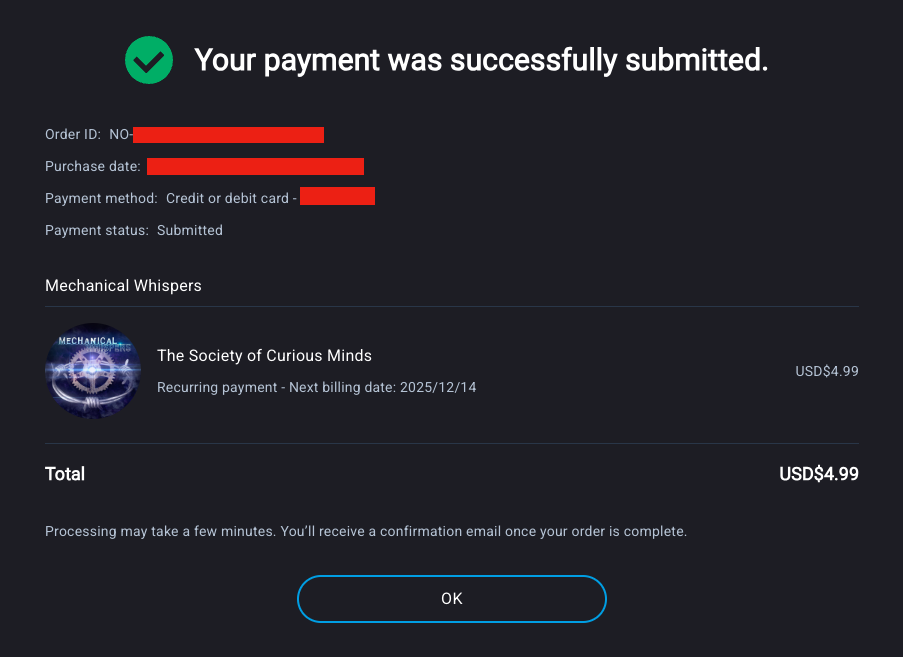
### Purchase Confirmation
Depending on your payment method, you may need to verify your card's security code. Once successful, you will see the confirmation page and receive an email.
{% endstep %}
{% step %}
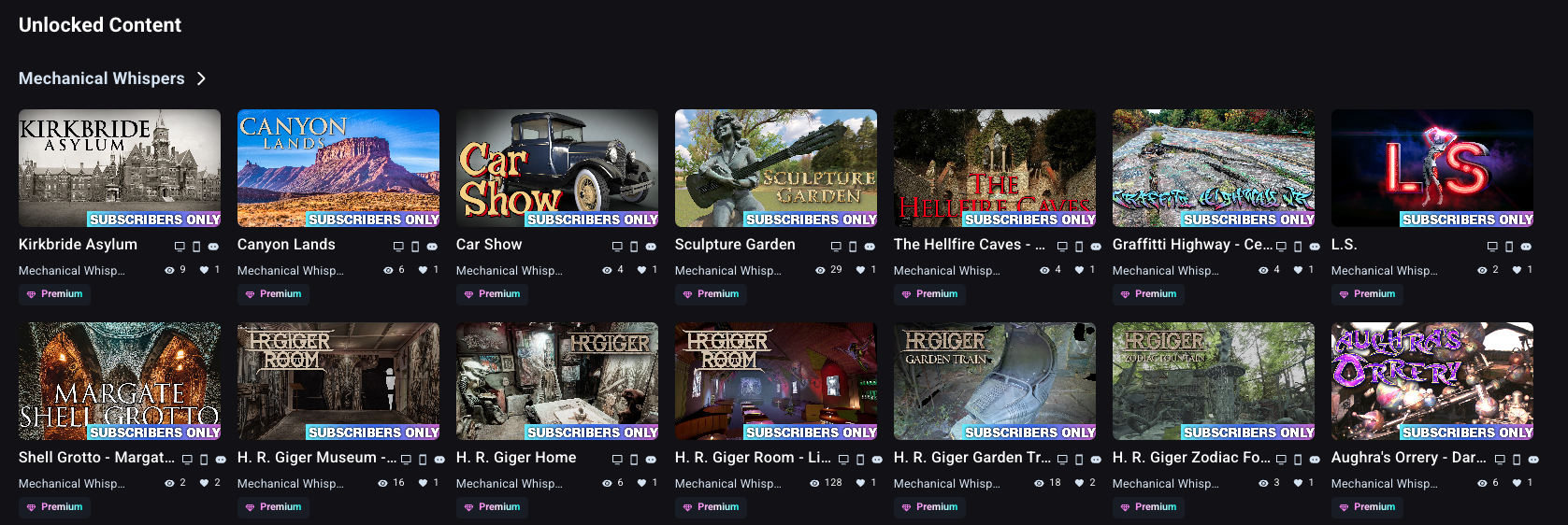
### Access Content
You can review and access the content your have purchased/subscribed-to on your VIVERSE profile:
{% endstep %}
{% endstepper %}
## Subscription Cancellation
To cancel a channel subscription, follow these steps...
{% stepper %}
{% step %}
### Go to Creator Profile
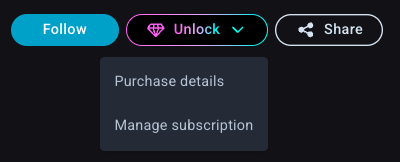
Go to the profile of the creator whose subscription you would like to cancel. Select the "Unlock" button and select "Manage Subscription".
{% endstep %}
{% step %}
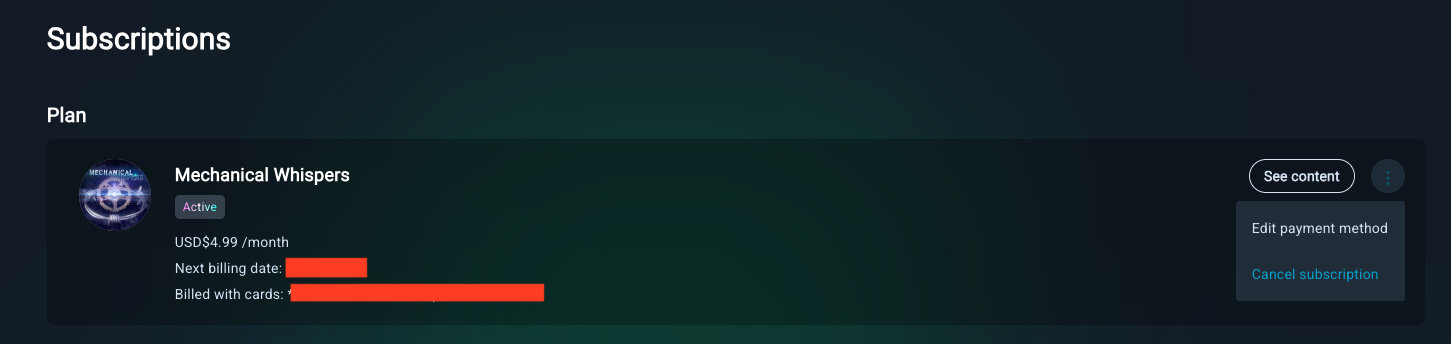
### Manage Subscriptions
You will automatically be redirected to where you can manage any subscriptions associated with your account, update payment methods, or cancel your subscriptions.
{% endstep %}
{% step %}
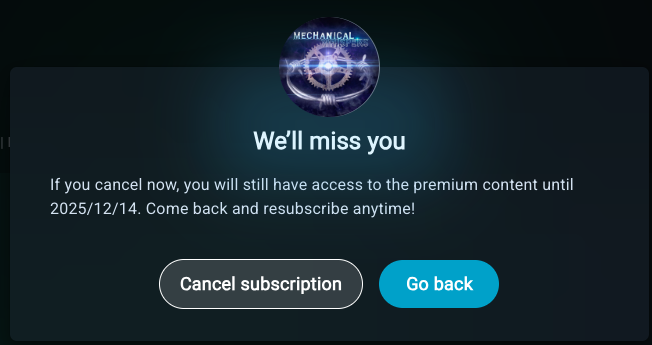
### Confirm Cancellation
Confirm your cancellation by selecting "Cancel Subscription".
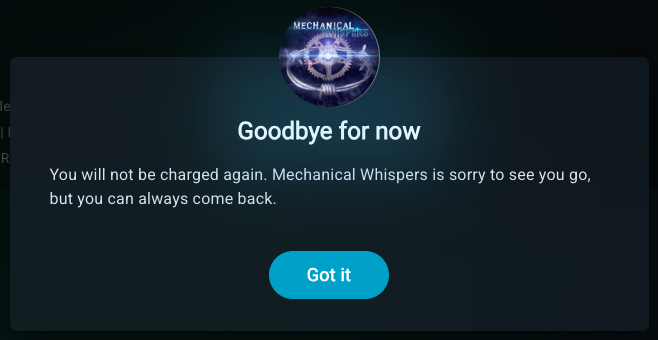
After confirming, you will see the confirmation screen and receive a confirmation email. You will continue to access any subscribed content until the end of the billing period.
{% endstep %}
{% step %}
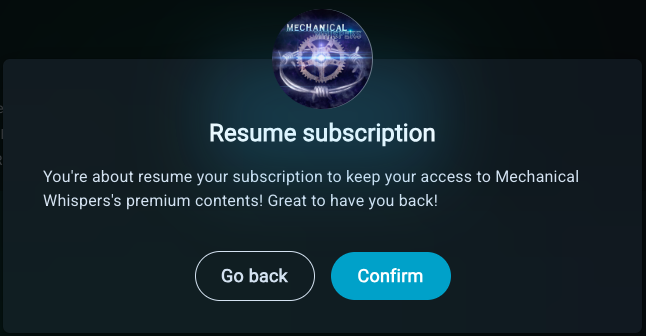
### (Optional) Resubscribe
After cancelling, you will see an option to resume a subscription at any time on . Simply select "Resume" and confirm!
{% endstep %}
{% endstepper %}
---
# Agent Instructions
This documentation is published with GitBook. GitBook is the documentation platform designed so that both humans and AI agents can read, navigate, and reason over technical content effectively. Learn more at gitbook.com.
## Querying This Documentation
If you need additional information that is not directly available in this page, you can query the documentation by asking a question.
Perform an HTTP GET request on the following URL with the `ask` and `goal` query parameters:
```
GET https://docs.viverse.com/monetization/premium-content-and-channel-subscriptions.md?ask=&goal=
```
`ask` is the immediate question: it should be specific, self-contained, and written in natural language.
`goal` is what the user is ultimately trying to achieve, the reason they need the answer. Sharing it helps GitBook give you a better, more relevant answer. A goal is most helpful when it describes the outcome the user wants rather than restating the question. For example, with `ask=how do I create an API token`, a goal like `automate deployments from our CI pipeline` lets GitBook tailor the answer to that use case.
The response will contain a direct answer to the question and relevant excerpts and sources from the documentation.
Use this mechanism when the answer is not explicitly present in the current page, you need clarification or additional context, or you want to retrieve related documentation sections.