> For the complete documentation index, see [llms.txt](https://docs.viverse.com/llms.txt). Markdown versions of documentation pages are available by appending `.md` to page URLs; this page is available as [Markdown](https://docs.viverse.com/playcanvas-toolkit/building-with-the-playcanvas-toolkit-legacy-v3/no-code-tools/networked.md).
# Networked
This page details the usage of the networked component on individual entities in PlayCanvas.
***
### Overview
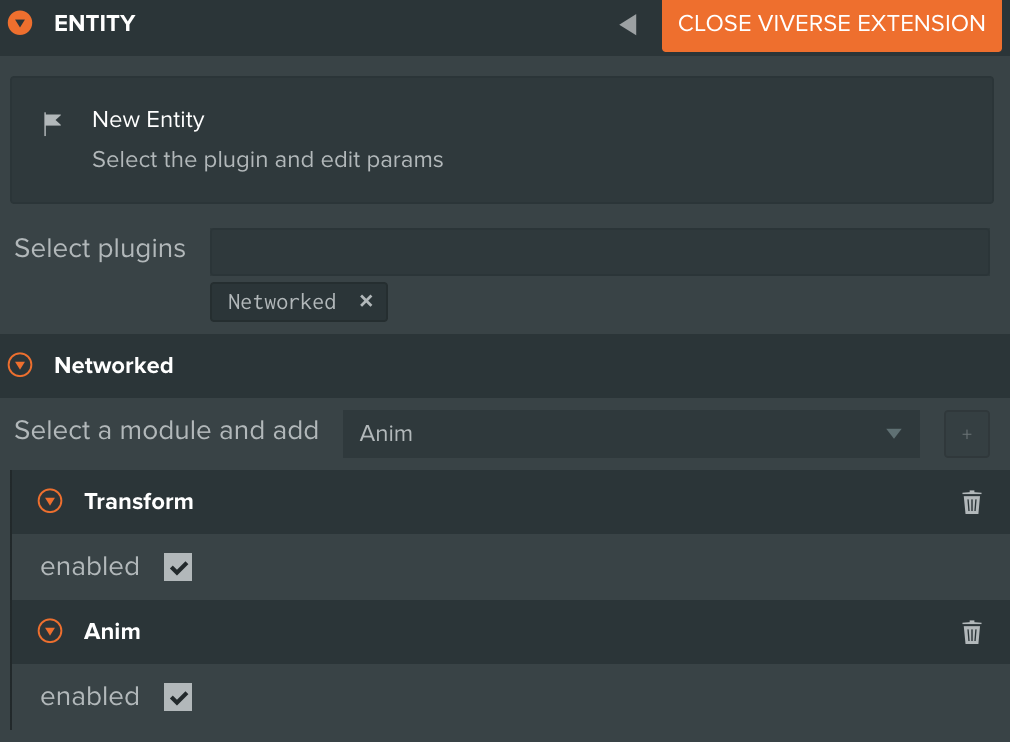
The Networked plugin allows local updates to certain properties of an entity's components to be sent to other connected avatars.
#### Transform
By adding the Transform component, an entity's position and rotation will be networked across clients.
{% hint style="warning" %}
At this time, Transform does not network the Scale property of the entity.
{% endhint %}
#### Anim
By adding the Anim component, an entity's animation state will be networked across clients.
### Networking Example
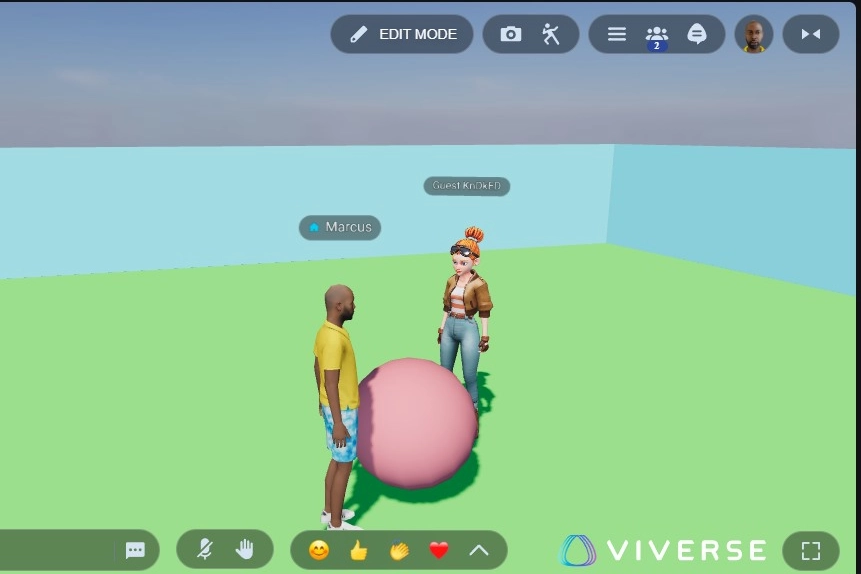
In this video, we have created an arena with a floor, four walls and a ball. The networking module has been added to the ball. After publishing and creating the world in VIVERSE, multiple players can join in the environment. The location of the ball is tracked across all player sessions.
{% embed url="" %}
To create the arena and ball in the video, you can follow the [Create Your First PlayCanvas Project](/playcanvas-toolkit/tutorials/create-your-first-playcanvas-project.md) tutorial. The instructions below can be used to add Networking functionality to the ball or any other entity of your choosing.
{% stepper %}
{% step %}
#### Create the entity
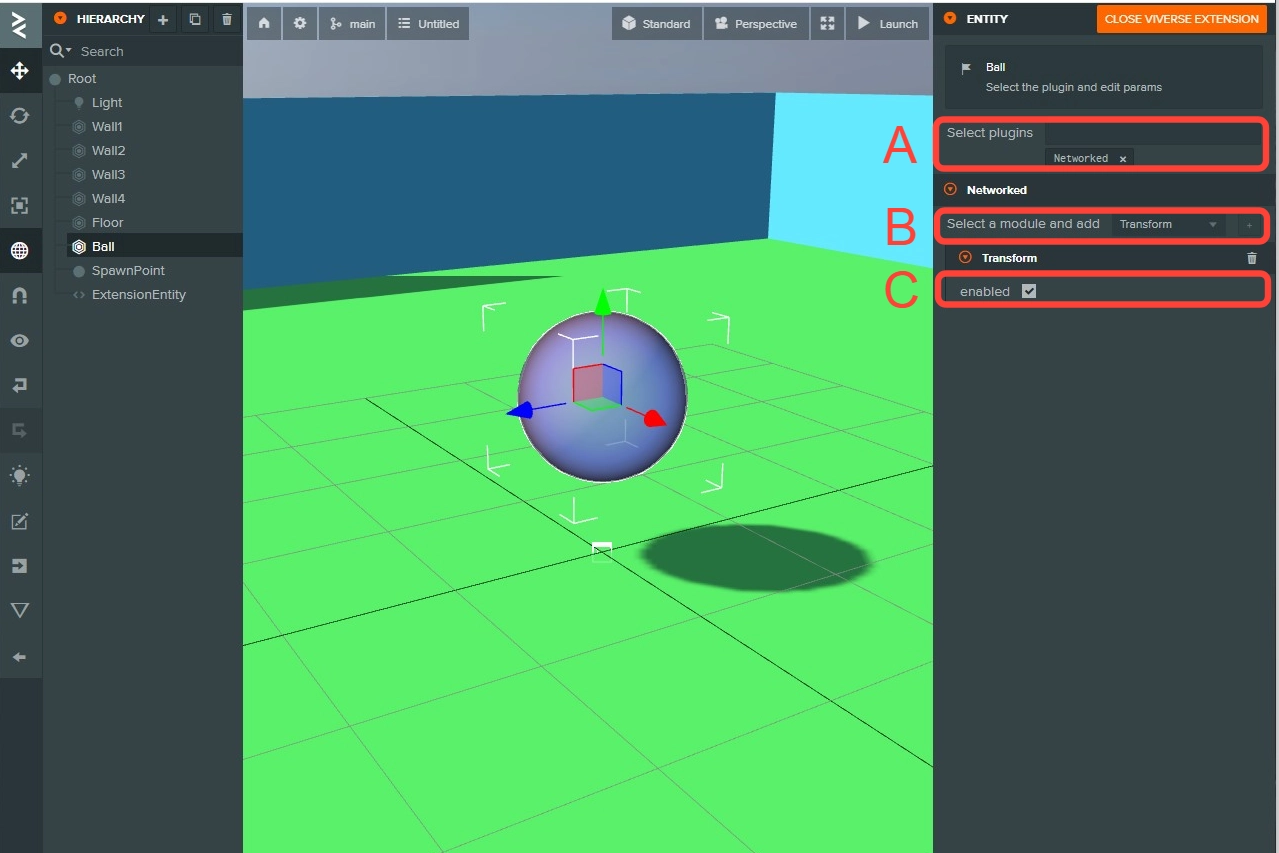
A. We have already created the **Ball** entity in the tutorial linked above. Here's a screenshot of the **Ball** entity.
{% endstep %}
{% step %}
#### Add the Networking module
A. In the VIVERSE extension, select the **Networking** plugin for the **Select plugins** dropdown.
B. Change the dropdown to **Transform** in the **Select a module and add** field. Click the plus sign.
C. Confirm the **enabled** checkbox is checked.
{% endstep %}
{% step %}
#### Publish and create world
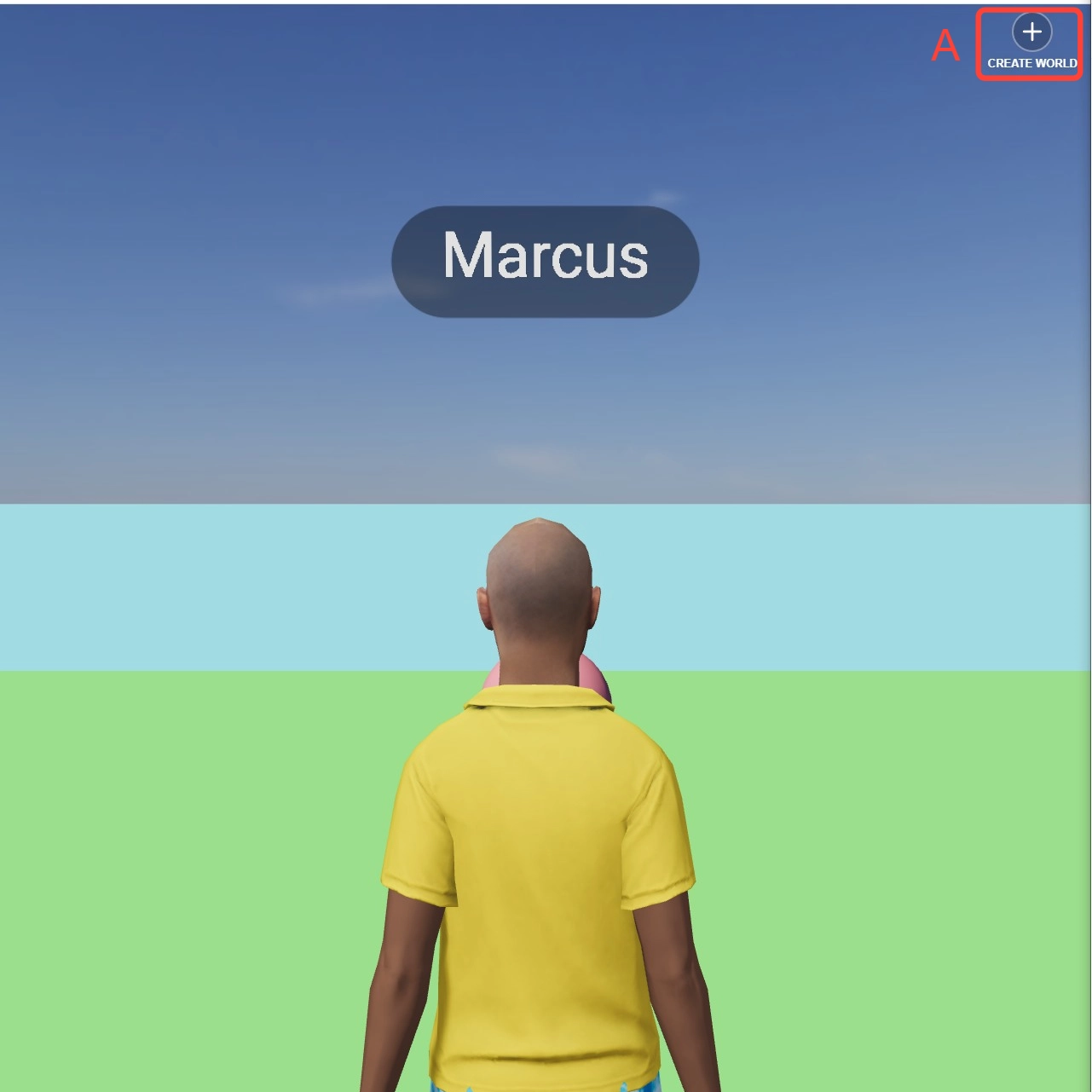
A. To test the project, publish to VIVERSE and create the world.
{% endstep %}
{% step %}
#### Share and play
A. Share the world link with another player and have them join the environment. We the other player interacts with the ball, you should be able to see the ball movement in your session. When you move the ball, the other player should be able to see the ball movement in their session.
{% endstep %}
{% endstepper %}
---
# Agent Instructions
This documentation is published with GitBook. GitBook is the documentation platform designed so that both humans and AI agents can read, navigate, and reason over technical content effectively. Learn more at gitbook.com.
## Querying This Documentation
If you need additional information that is not directly available in this page, you can query the documentation by asking a question.
Perform an HTTP GET request on the following URL with the `ask` and `goal` query parameters:
```
GET https://docs.viverse.com/playcanvas-toolkit/building-with-the-playcanvas-toolkit-legacy-v3/no-code-tools/networked.md?ask=&goal=
```
`ask` is the immediate question: it should be specific, self-contained, and written in natural language.
`goal` is what the user is ultimately trying to achieve, the reason they need the answer. Sharing it helps GitBook give you a better, more relevant answer. A goal is most helpful when it describes the outcome the user wants rather than restating the question. For example, with `ask=how do I create an API token`, a goal like `automate deployments from our CI pipeline` lets GitBook tailor the answer to that use case.
The response will contain a direct answer to the question and relevant excerpts and sources from the documentation.
Use this mechanism when the answer is not explicitly present in the current page, you need clarification or additional context, or you want to retrieve related documentation sections.