> For the complete documentation index, see [llms.txt](https://docs.viverse.com/llms.txt). Markdown versions of documentation pages are available by appending `.md` to page URLs; this page is available as [Markdown](https://docs.viverse.com/playcanvas-toolkit/toolkit-setup.md).
# Toolkit Setup
Learn how to install the VIVERSE Toolkit for the PlayCanvas Editor, create your first project, then publish it to VIVERSE.
***
{% hint style="warning" %}
This documentation covers building with v4 and newer of the VIVERSE PlayCanvas Toolkit. [See here](/playcanvas-toolkit/toolkit-setup-legacy-v3.md) for legacy documentation on v3 setup.
{% endhint %}
## Introduction
[PlayCanvas](https://playcanvas.com/) is an open-source game engine designed to advance the development of 3D web games, interactive content and rich multimedia. Unlike similar WebGL engines like Three.js or Babylon, PlayCanvas comes with sophisticated in-browser Editor (inspired by early [Unity 2.x - 3.x](https://www.elmundotech.com/2010/09/27/unity-3-game-dev-platform-available-now/)), which provides its users with a rich set of tools — allowing to assemble scenes from imported assets, setup real-time and baked lighting, write custom scripts, create animation graphs, and much much more.
To make creator's experience even richer, VIVERSE has developed a special Toolkit, which consists of two parts complementing each other — the Extension and the Framework:
* **The Extension** lives in your Chrome browser, and its main goal is to add extra functionality to vanilla PlayCanvas Editor, not achievable otherwise — like initializing your project, creating new VIVERSE projects, setting up Local Player, Quests and Post Effects, and of course providing convenient ways to Publish to VIVERSE!
* **The Framework** is a collection of scripts and assets that the Extension adds to your project during initialization, under the `.viverse` folder. It provides important runtime systems for Avatars, Player Locomotion, Networking and so forth, and common building blocks like Triggers and Actions, that you can use to create custom no-code logic in your Worlds
{% hint style="info" %}
Please see [the full collection of documents](/playcanvas-toolkit/building-with-playcanvas-toolkit.md) to help you get started with the Toolkit. We assume you're already familiar with PlayCanvas Editor itself and have PlayCanvas account. If not, please feel free to explore [PlayCanvas User Manual](https://developer.playcanvas.com/user-manual/) first!
{% endhint %}
## Install PlayCanvas Extension
{% columns %}
{% column width="66.66666666666666%" %}
{% stepper %}
{% step %}
### Get the latest Extension from VIVERSE
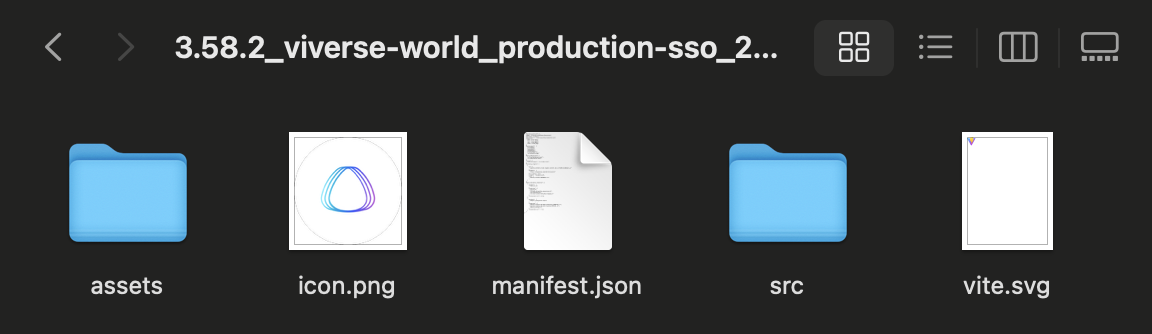
* [Download](/playcanvas-toolkit/playcanvas-toolkit-changelog.md) the latest version of Playcanvas Extension
* Unzip downloaded file on your computer
{% endstep %}
{% step %}
### Navigate to Extensions manager
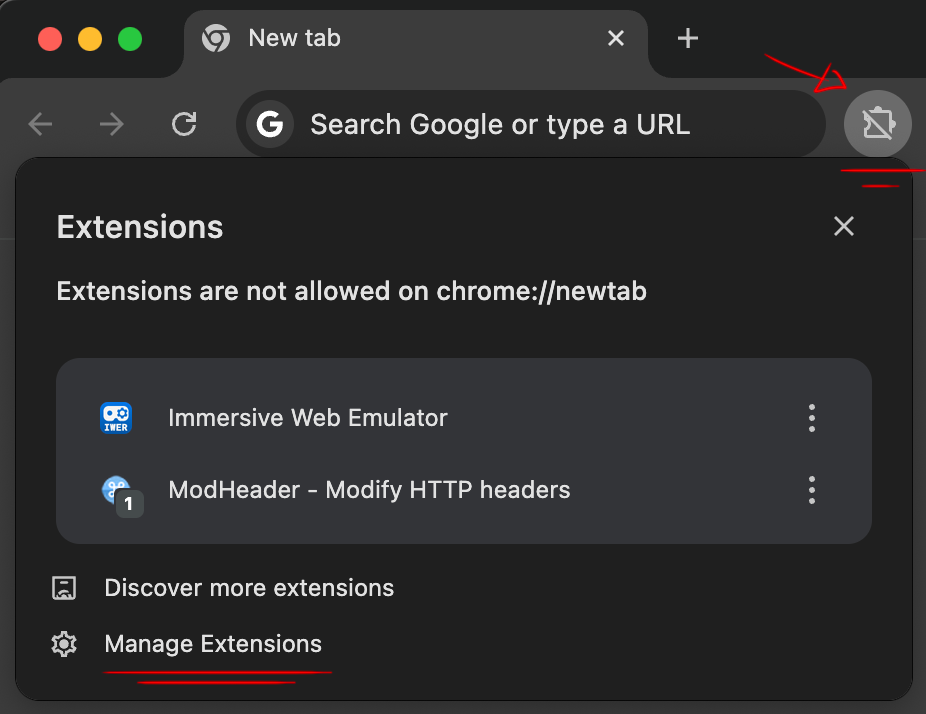
* Click **Extensions** icon in Chrome toolbar and open the Extensions Popup
* Click **Manage Extensions** at the bottom and open the Extensions Manager in a new tab
{% endstep %}
{% step %}
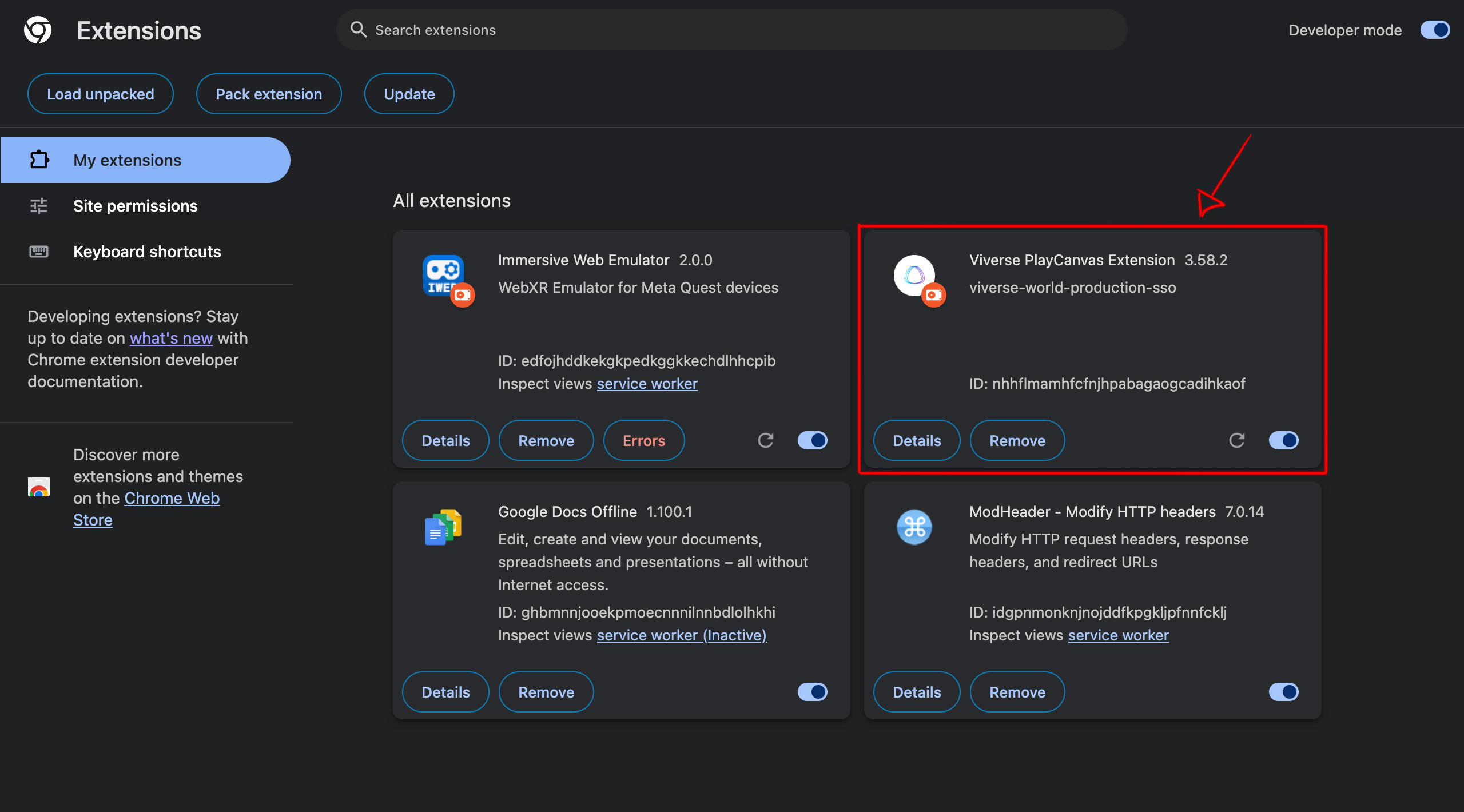
### Install the Extension
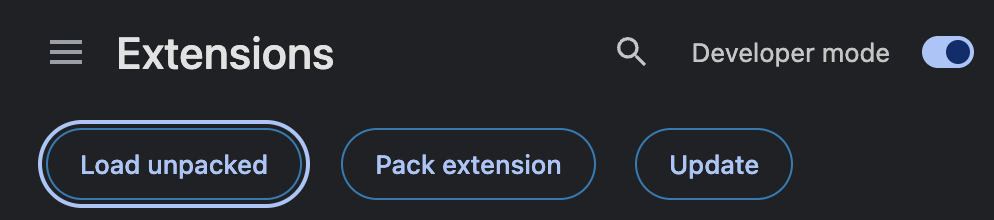
* Enable **Developer Mode** at the top right corner
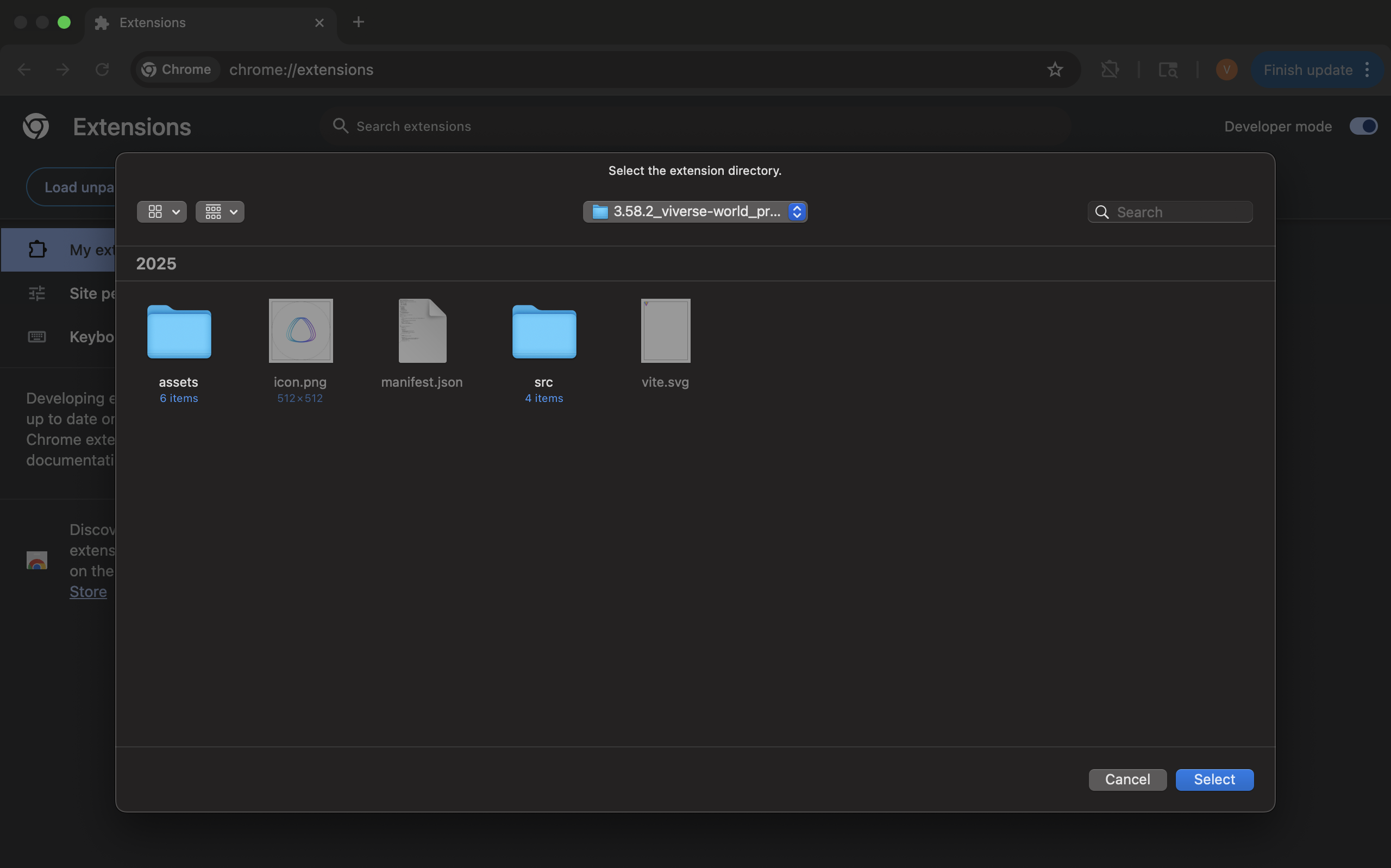
* Click **Load Unpacked** and select the folder with unpacked Extension you downloaded previously
* Verify the Extension is now present in Extensions Manager tab
{% endstep %}
{% endstepper %}
{% endcolumn %}
{% column width="33.33333333333334%" %}
{% endcolumn %}
{% endcolumns %}
## Create, Test, and Publish your first project
{% hint style="info" %}
Before proceeding any further, we assume you're familiar with the basics of PlayCanvas Editor. If you're looking for a comprehensive introduction to it — please refer to a dedicated [PlayCanvas Editor Manual](https://developer.playcanvas.com/user-manual/editor/) first!
{% endhint %}
{% columns %}
{% column width="66.66666666666666%" %}
{% stepper %}
{% step %}
### Enter a PlayCanvas Project
* Enter the editor of an existing PlayCanvas project or create a new one
{% endstep %}
{% step %}
### Enable the extension
* Click **Extensions** icon in Chrome toolbar and open the Extensions Popup
* Select the **VIVERSE PlayCanvas Toolkit** button
{% endstep %}
{% step %}
### Sign In to VIVERSE
* Select the **Log In to VIVERSE** button that is now in the left-hand toolbar
* **Complete the VIVERSE SSO process** to sign in to your account
{% endstep %}
{% step %}
### Create VIVERSE Application
* Select the **VIVERSE PlayCanvas Toolkit Settings** button in your left-hand toolbar
* Select **Create New World** and wait for the toolkit to upload all scripts to your project.
{% endstep %}
{% step %}
### Test Scene Locally
* After creating an application, you will notice that a number of files and entities have been added to your project, including a template for VIVERSE avatars.
* Make sure to **add a collidable object** for the VIVERSE avatar to interact with. This process will **import** **ammo.js**, which is the required default for the VIVERSE toolkit.
* Select **Launch** in the PlayCanvas editor. This will start a local session where you can test all features, including multiplayer audio.
{% endstep %}
{% step %}
### Export and Upload
* When you are ready to upload, you must first create a new build in PlayCanvas. This can be completed in **Publish and Download** in the left-hand toolbar.
* Once you have generated a build, **download its .zip file**.
* **Navigate to studio.viverse.com** and [complete the upload process](/how-to-publish.md#publishing-apps-with-viverse-studio). PLEASE NOTE, when you created your VIVERSE application, a project was automatically generated in studio.viverse.com under your account. You should use this project when uploading your files.
{% endstep %}
{% endstepper %}
{% endcolumn %}
{% column width="33.33333333333334%" %}
{% endcolumn %}
{% endcolumns %}
> Sometimes issues in the installation process can produce persistent bugs that are only fixed by fully resetting the Extension. If you're experiencing these bugs please follow the steps below
{% stepper %}
{% step %}
### Sign in and out of VIVERSE
Sign out of your account on viverse.com and then sign back in. **MAKE SURE** you are using the same email account as the one associated with your PlayCanvas account
{% endstep %}
{% step %}
### Delete VIVERSE entities from PlayCanvas project
Go back to your PlayCanvas project and delete:
* The `Extension` Entity from your scene hierarchy
* The `.viverse` folder from your project assets
* The `.index.mjs` folder from your scripts folder
{% endstep %}
{% step %}
### Clear Application Storage
Open the [Developer Tools](https://elfsight.com/blog/how-to-work-with-developer-console/) in your Chrome broswer, go to "Application", select "Storage" in the left hand toolbar and click the "Delete Site Data" button
{% endstep %}
{% step %}
### Refresh the page
Refresh your PlayCanvas project page with the VIVERSE extension enabled
{% endstep %}
{% step %}
### Sign in back to PlayCanvas
Sign in to PlayCanvas when prompted. **MAKE SURE** you are using the same email account as the one associated with your VIVERSE account
{% endstep %}
{% step %}
### Sign in back to VIVERSE
Sign in to VIVERSE from within your PlayCanvas project using the VIVERSE Scene Settings
{% endstep %}
{% endstepper %}
---
# Agent Instructions
This documentation is published with GitBook. GitBook is the documentation platform designed so that both humans and AI agents can read, navigate, and reason over technical content effectively. Learn more at gitbook.com.
## Querying This Documentation
If you need additional information that is not directly available in this page, you can query the documentation by asking a question.
Perform an HTTP GET request on the following URL with the `ask` and `goal` query parameters:
```
GET https://docs.viverse.com/playcanvas-toolkit/toolkit-setup.md?ask=&goal=
```
`ask` is the immediate question: it should be specific, self-contained, and written in natural language.
`goal` is what the user is ultimately trying to achieve, the reason they need the answer. Sharing it helps GitBook give you a better, more relevant answer. A goal is most helpful when it describes the outcome the user wants rather than restating the question. For example, with `ask=how do I create an API token`, a goal like `automate deployments from our CI pipeline` lets GitBook tailor the answer to that use case.
The response will contain a direct answer to the question and relevant excerpts and sources from the documentation.
Use this mechanism when the answer is not explicitly present in the current page, you need clarification or additional context, or you want to retrieve related documentation sections.