# Unity WebGL

***

## Publishing Tutorial

Anyone can publish their WebGL-compatible Unity project to VIVERSE in a few simple steps. In this guide, we'll walk through the process of creating an new Unity project, making sure it is compatible with WebGL, and publishing to VIVERSE using the [VIVERSE CLI](https://www.npmjs.com/package/@viverse/cli).

{% hint style="info" %}
For this guide, we are using the VIVERSE CLI, but it is also possible to compress and [upload your build file directly to the VIVERSE Studio](/publishing-with-your-viverse-account.md#upload).
{% endhint %}

While VIVERSE is a great place for multiplayer games with networked avatars — and we have a number of services that can help you implement these features — it is not required to implement networked avatars to publish to VIVERSE.

### Prerequisites

* Unity Hub and Unity installed on your device.
* [Node](https://nodejs.org/en) and [npm](https://www.npmjs.com/package/@viverse/cli) installed on your device. Please use at least Node v22 - **Only required if using the CLI, not VIVERSE Studio**

{% hint style="warning" %}
In this tutorial, we will be using Unity v6.1, however any WebGL-compatible version of Unity should be supported.
{% endhint %}

### Configure Your Unity Project

{% stepper %}
{% step %}

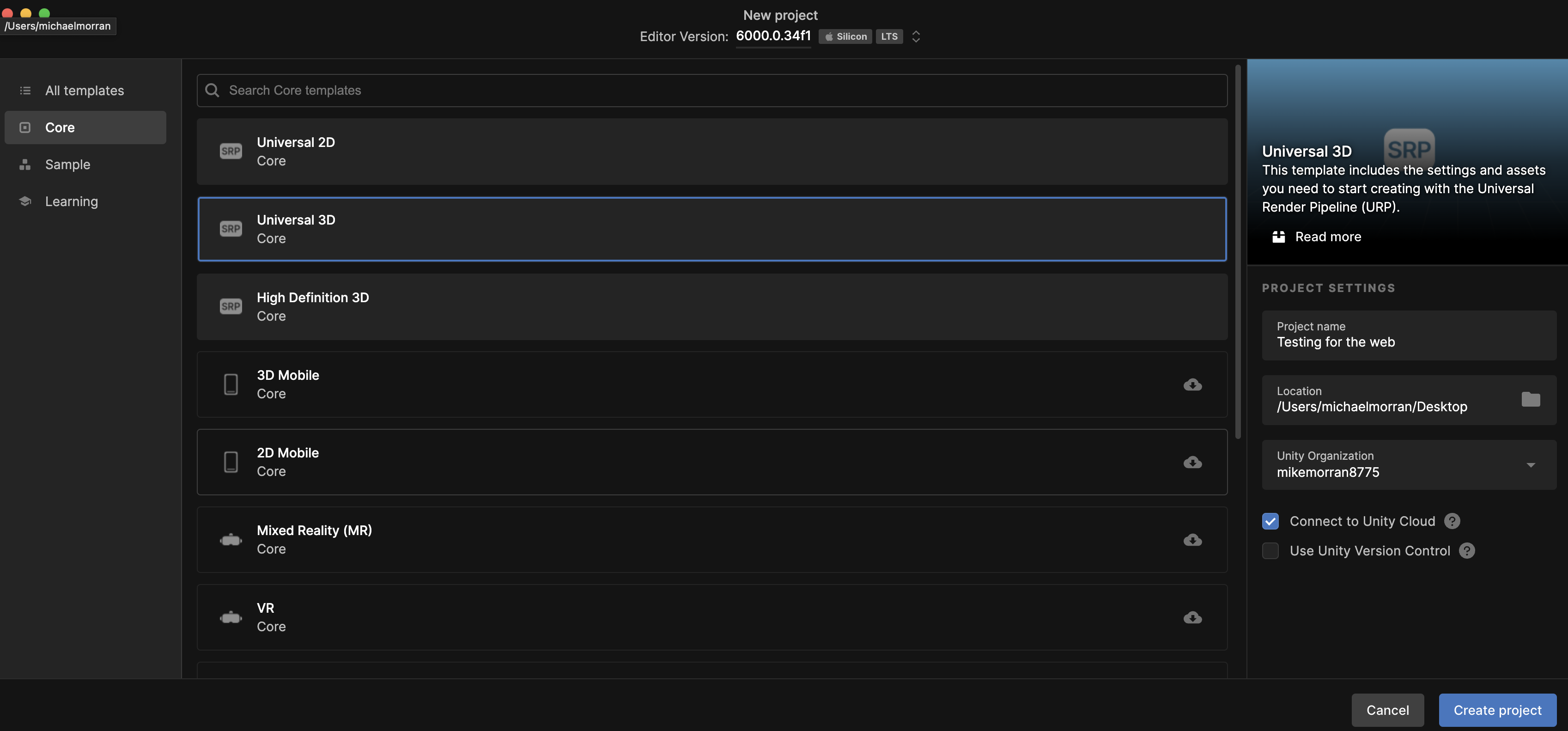
#### Create a Unity Project

<figure><img src="/files/Tuevx3jwYm8yoYJFPJz9" alt="" width="375"><figcaption></figcaption></figure>
{% endstep %}

{% step %}

#### Install the Unity Plugin

Navigate to Window > Package Manager > Unity Registry and search for "WebGL Publisher". Add the module to your project.

<p align="center"> <img src="/files/ANCJgo1FOdoQNSXMlkz2" alt=""></p>
{% endstep %}

{% step %}

#### (Optional) Enable Decompression Fallback

Compression is supported on VIVERSE, however you can enable fallback if you are encountering errors or would like to have it included. Navigate to Edit > Project Settings > Player > Web Settings > Publishing Settings and check "Decompression Fallback".

<figure><img src="/files/jlqIjq4Qy0I51X24jbAj" alt="" width="375"><figcaption></figcaption></figure>
{% endstep %}
{% endstepper %}

### Build and Publish to VIVERSE

{% stepper %}
{% step %}

#### Build Your Project

Navigate to Publish and select "WebGL Publish". In the pop-up, click "Build and Publish", selecting the desired folder for your build. When doing this for the first time, Unity will automatically publish to their web-servers for testing. For future builds, you can disable this behavior to just the builds without publishing.

<figure><img src="/files/FNEyUflsVau6qTHfODFf" alt="" width="317"><figcaption></figcaption></figure>
{% endstep %}

{% step %}

#### Install the VIVERSE CLI

In a terminal session, run `npm install -g @viverse/cli` to install the CLI globally. Make sure you are using at least node v22.

<figure><img src="/files/2Hu1addxggD6KWjQ3d8v" alt="" width="375"><figcaption></figcaption></figure>
{% endstep %}

{% step %}

#### Login to VIVERSE

In the terminal session, run `viverse-cli auth login` and enter your VIVERSE account email and password.

<figure><img src="/files/Fb1s20hxrkyQPhMm9lNc" alt="" width="375"><figcaption></figcaption></figure>
{% endstep %}

{% step %}

#### Create VIVERSE App

In the terminal session, run `viverse-cli app create` . Once complete, copy the app ID to be used when publishing.

<figure><img src="/files/oXO7Z4NCBGbgij8FUdx9" alt="" width="375"><figcaption></figcaption></figure>
{% endstep %}

{% step %}

#### Publish to VIVERSE

In the terminal session, run `viverse-cli app publish {path/to/unity/webgl/build} --app-id {your app id from step 4}` referencing folder containing the index.html of your Unity build.

<figure><img src="/files/rQXNmkpecN02Whi4B6MF" alt="" width="375"><figcaption></figcaption></figure>
{% endstep %}

{% step %}

#### Test & Configure World Settings

Navigate to the preview url created for the world. You can also access the world and its settings in [studio.viverse.com/content](https://studio.viverse.com/content).&#x20;

<figure><img src="/files/C5J54mwg2aif5WhajmGQ" alt="" width="375"><figcaption></figcaption></figure>

<figure><img src="/files/4QYS318YNTuCCuPByY7D" alt="" width="316"><figcaption></figcaption></figure>
{% endstep %}

{% step %}

#### Submit for Curation and Discovery

By default, worlds uploaded will only be accessible via preview urls. For placement and curation on our webpages, meaning your experience will be easier to share, please [submit for review](/publishing-with-your-viverse-account.md#upload).
{% endstep %}
{% endstepper %}

## Unity & VIVERSE Compatibility Overview

VIVERSE supports Unity WebGL builds with specific requirements and recommendations for optimal performance and compatibility. This section covers essential settings and considerations for targeting VIVERSE.

### Supported Unity Versions

VIVERSE supports the following Unity versions:

* **Unity 2021 LTS** (2021.3.x) - Recommended for stability
* **Unity 2022 LTS** (2022.3.x) - Recommended for newer features
* **Unity 2023.x** - Supported, but verify compatibility with VIVERSE SDK

**Note:** Always use LTS (Long Term Support) versions for production projects targeting VIVERSE to ensure long-term compatibility and support.

### Required Unity Modules

Install the following modules via Unity Hub:

1. **WebGL Build Support** - Essential for building WebGL projects
2. **WebGL Development Build Support** - Recommended for debugging
3. **IL2CPP** - Required for WebGL builds (automatically included with WebGL module)

Verify installation: `Edit → Preferences → External Tools` or check installed modules in Unity Hub.

### Supported Render Pipelines

**Important:** Unity WebGL does **NOT** support HDRP (High Definition Render Pipeline).

**Built-in Render Pipeline:**

* Fully supported for WebGL/VIVERSE
* Best compatibility across all browsers
* Recommended for projects targeting maximum compatibility
* No additional packages required

**Universal Render Pipeline (URP):**

* Fully supported for WebGL/VIVERSE
* **Recommended** for new projects targeting WebGL
* Better performance and modern features optimized for web platforms
* Requires URP package (installed via Package Manager)
* Optimized for low-end and web platforms

**High Definition Render Pipeline (HDRP):**

* **NOT supported** on WebGL/VIVERSE
* HDRP is designed for high-end GPUs and requires features unavailable in WebGL:
  * Real-time ray tracing
  * Advanced volumetrics
  * Compute shaders with full GPU access
  * Large render targets
  * Advanced shader models
* WebGL runs in a browser sandbox with restricted GPU access and memory
* **You must convert HDRP projects to URP for WebGL builds**

### Choosing a Render Pipeline

**For New Projects Targeting WebGL/VIVERSE:**

* **URP** is **strongly recommended** for modern features and optimal WebGL performance
* Install via `Window → Package Manager → Unity Registry → Universal RP`

**For Existing Projects:**

* **Built-in:** Works without changes, but URP offers better WebGL performance
* **URP Migration:** Use Unity's Render Pipeline Converter tool (`Edit → Render Pipeline → Universal Render Pipeline → Convert Project to URP`)
* **HDRP Projects:** **Must convert to URP** for WebGL builds (HDRP is not supported)

**Converting HDRP to URP for WebGL:**

1. Install URP package via Package Manager
2. Use Unity's Render Pipeline Converter:
   * `Edit → Render Pipeline → Universal Render Pipeline → Convert Project to URP`
3. Review and update materials (HDRP materials need URP equivalents)
4. Test shaders and lighting (some HDRP features may not have direct URP equivalents)
5. Optimize for WebGL performance (WebGL is sensitive to draw calls, textures, and shader complexity)

**Considerations:**

* URP provides better WebGL performance than Built-in
* URP has smaller build sizes
* URP supports modern shader features optimized for web
* Built-in has maximum compatibility but lower performance
* **HDRP cannot be used for WebGL builds**

### Render Pipeline Settings

**Built-in Render Pipeline:**

* No special configuration needed
* Settings in `Edit → Project Settings → Graphics`
* Configure Quality Settings as needed

**Universal Render Pipeline (URP):**

* Create URP Asset: `Assets → Create → Rendering → URP Asset`
* Assign in `Edit → Project Settings → Graphics → Scriptable Render Pipeline Settings`
* Configure URP Asset settings:
  * **Render Scale:** 1.0 (or lower for performance)
  * **HDR:** Disabled (WebGL doesn't support HDR)
  * **MSAA:** 2x or 4x (balance quality vs performance)
  * **Shadow Distance:** Adjust based on your scene needs

### Shader Compatibility

**Built-in Shaders:**

* All built-in shaders work with Built-in Render Pipeline
* Standard, Unlit, UI shaders fully supported

**URP Shaders:**

* Use URP-compatible shaders (Lit, Unlit, etc.)
* Built-in shaders won't work with URP
* Convert shaders using Shader Graph or manually rewrite
* **HDRP shaders are NOT compatible** - must convert to URP shaders for WebGL

**Custom Shaders:**

* Ensure shaders are compatible with your chosen render pipeline
* **HDRP shaders cannot be used in WebGL builds** - convert to URP equivalents
* Test shaders in WebGL build (some features may not work)
* WebGL 2.0 supports most modern shader features, but not HDRP-specific features
* WebGL is sensitive to shader complexity - optimize for performance

## Unity Formatting and Custom Loading Screens

An example of a fullscreen WebGL template can be found [here](https://github.com/VIVERSE-DOCS/viverse-docs/blob/main/samples/Unity/WebGL_FullScreen_Template.zip). The instructions for creating a WebGL fullscreen template are below.

### Understanding WebGL Templates

WebGL templates control the HTML/CSS/JavaScript wrapper around your Unity WebGL build. They determine:

* How the canvas is displayed (fullscreen, windowed, etc.)
* Loading screen appearance and behavior
* Browser UI elements visibility
* Mobile responsiveness
* Fullscreen functionality

**Default Templates:**

* Unity provides default templates (Minimal, Default, etc.)
* Custom templates allow full control over presentation

### Fullscreen Canvas Benefits

A fullscreen canvas template provides:

* **Immersive Experience:** No browser UI distractions
* **Maximum Screen Usage:** Canvas fills entire viewport
* **Better Performance:** No layout calculations for browser elements
* **Professional Appearance:** Clean, game-like presentation
* **VIVERSE Optimization:** Matches VIVERSE's immersive environment

**Key Features:**

* Canvas set to 100% width and height
* Body and container with `overflow: hidden`
* No scrollbars or browser chrome
* Responsive to different screen sizes
* Mobile-friendly viewport configuration

### Custom Loading Screen Overview

Custom loading screens enhance user experience by:

* **Branding:** Display your logo/branding during load
* **Progress Feedback:** Show loading progress to users
* **Professional Appearance:** Custom design matching your project
* **User Engagement:** Keep users informed during asset loading

**Components:**

* Loading bar container (centered on screen)
* Logo/branding element
* Progress bar (animates from 0% to 100%)
* Optional loading text or animations
* Styled with CSS for custom appearance

### Create the WebGL Template Folder Structure

{% stepper %}
{% step %}

#### Navigate to Assets Folder

In Unity, open your project and navigate to the `Assets` folder in the Project window.
{% endstep %}

{% step %}

#### Create WebGLTemplates Directory

1. Right-click in the `Assets` folder → Create → Folder
2. Name the folder `WebGLTemplates` (exact name required by Unity)
3. This folder will contain all custom WebGL templates
   {% endstep %}

{% step %}

#### Create Fullscreen Template Folder

1. Right-click on `WebGLTemplates` → Create → Folder
2. Name it `Fullscreen` (this will be the template name visible in Build Settings)
3. Unity will automatically detect this folder as a WebGL template
   {% endstep %}
   {% endstepper %}

### Create the Fullscreen HTML Template

{% stepper %}
{% step %}

#### Create index.html File

1. Right-click on the `Fullscreen` folder → Show in Explorer (Windows) or Reveal in Finder (Mac)
2. Create a new text file named `index.html` (not `index.html.txt`)
3. This file will serve as the main HTML template for your WebGL build
   {% endstep %}

{% step %}

#### Add Fullscreen HTML Structure

Open `index.html` and add the following fullscreen template code:

```html
<!DOCTYPE html>
<html lang="en-us">
  <head>
    <meta charset="utf-8">
    <meta http-equiv="Content-Type" content="text/html; charset=utf-8">
    <title>Unity WebGL Player | {{{ PRODUCT_NAME }}}</title>
    <style>
      html, body {
        width: 100%;
        height: 100%;
        margin: 0;
        padding: 0;
        overflow: hidden;
      }
      #unity-container {
        position: absolute;
        width: 100%;
        height: 100%;
        overflow: hidden;
      }
      #unity-container.unity-mobile {
        position: fixed;
        left: 0;
        top: 0;
        width: 100%;
        height: 100%;
      }
      .unity-mobile #unity-canvas {
        width: 100%;
        height: 100%;
        display: block;
      }
      #unity-canvas {
        background: #231F20;
      }
      #unity-loading-bar {
        position: absolute;
        left: 50%;
        top: 50%;
        transform: translate(-50%, -50%);
        display: none;
      }
      #unity-logo {
        width: 154px;
        height: 130px;
        background: url('unity-logo-dark.png') no-repeat center;
      }
      #unity-progress-bar-empty {
        width: 141px;
        height: 18px;
        margin-top: 10px;
        margin-left: 6.5px;
        background: url('progress-bar-empty-dark.png') no-repeat center;
      }
      #unity-progress-bar-full {
        width: 0%;
        height: 18px;
        margin-top: 10px;
        background: url('progress-bar-full-dark.png') no-repeat center;
      }
      #unity-footer {
        position: relative;
        display: none;
      }
      .unity-mobile #unity-footer {
        display: none;
      }
      #unity-webgl-logo {
        float: left;
        width: 204px;
        height: 38px;
        background: url('webgl-logo.png') no-repeat center;
      }
      #unity-build-title {
        float: right;
        margin-right: 10px;
        line-height: 38px;
        font-family: arial;
        font-size: 18px;
      }
      #unity-fullscreen-button {
        cursor: pointer;
        float: right;
        width: 38px;
        height: 38px;
        background: url('fullscreen-button.png') no-repeat center;
      }
      #unity-warning {
        position: absolute;
        left: 50%;
        top: 5%;
        transform: translate(-50%);
        background: white;
        padding: 10px;
        display: none;
      }
    </style>
  </head>
  <body>
    <div id="unity-container" class="unity-desktop">
      <canvas id="unity-canvas" tabindex="-1"></canvas>
      <div id="unity-loading-bar">
        <div id="unity-logo"></div>
        <div id="unity-progress-bar-empty">
          <div id="unity-progress-bar-full"></div>
        </div>
      </div>
      <div id="unity-warning"> </div>
      <div id="unity-footer">
        <div id="unity-webgl-logo"></div>
        <div id="unity-fullscreen-button"></div>
        <div id="unity-build-title">{{{ PRODUCT_NAME }}}</div>
      </div>
    </div>
    <script>
      var container = document.querySelector("#unity-container");
      var canvas = document.querySelector("#unity-canvas");
      var loadingBar = document.querySelector("#unity-loading-bar");
      var progressBarFull = document.querySelector("#unity-progress-bar-full");
      var fullscreenButton = document.querySelector("#unity-fullscreen-button");
      var warningBanner = document.querySelector("#unity-warning");

      function unityShowBanner(msg, type) {
        function updateBannerVisibility() {
          warningBanner.style.display = warningBanner.children.length ? 'block' : 'none';
        }
        var div = document.createElement('div');
        div.innerHTML = msg;
        warningBanner.appendChild(div);
        if (type == 'error') div.style = 'background: red; padding: 10px;';
        else {
          if (type == 'warning') div.style = 'background: yellow; padding: 10px;';
          setTimeout(function() {
            warningBanner.removeChild(div);
            updateBannerVisibility();
          }, 5000);
        }
        updateBannerVisibility();
      }

      var buildUrl = "Build";
      var loaderUrl = buildUrl + "/{{{ LOADER_FILENAME }}}";
      var config = {
        dataUrl: buildUrl + "/{{{ DATA_FILENAME }}}",
        frameworkUrl: buildUrl + "/{{{ FRAMEWORK_FILENAME }}}",
        codeUrl: buildUrl + "/{{{ CODE_FILENAME }}}",
#if MEMORY_FILENAME
        memoryUrl: buildUrl + "/{{{ MEMORY_FILENAME }}}",
#endif
#if SYMBOLS_FILENAME
        symbolsUrl: buildUrl + "/{{{ SYMBOLS_FILENAME }}}",
#endif
        streamingAssetsUrl: "StreamingAssets",
        companyName: "{{{ COMPANY_NAME }}}",
        productName: "{{{ PRODUCT_NAME }}}",
        productVersion: "{{{ PRODUCT_VERSION }}}",
        showBanner: unityShowBanner,
      };

      if (/iPhone|iPad|iPod|Android/i.test(navigator.userAgent)) {
        var meta = document.createElement('meta');
        meta.name = 'viewport';
        meta.content = 'width=device-width, height=device-height, initial-scale=1.0, user-scalable=no, shrink-to-fit=yes';
        document.getElementsByTagName('head')[0].appendChild(meta);
        container.className = "unity-mobile";
        canvas.className = "unity-mobile";
        // Use native device pixel ratio for sharp rendering on high-DPI screens.
        // Cap at 2 to avoid excessive GPU load on 3x devices.
        config.devicePixelRatio = Math.min(window.devicePixelRatio || 1, 2);
      } else {
        canvas.style.width = "100%";
        canvas.style.height = "100%";
      }

      loadingBar.style.display = "block";

      var script = document.createElement("script");
      script.src = loaderUrl;
      script.onload = () => {
        createUnityInstance(canvas, config, (progress) => {
          progressBarFull.style.width = 100 * progress + "%";
        }).then((unityInstance) => {
          loadingBar.style.display = "none";
          fullscreenButton.onclick = () => {
            unityInstance.SetFullscreen(1);
          };
        }).catch((message) => {
          alert(message);
        });
      };

      document.body.appendChild(script);
    </script>
  </body>
</html>


```

**Key Features:**

* `html`, `body`, and `#unity-container` fill the viewport with `overflow: hidden` for true fullscreen
* **Desktop:** canvas `style` width/height set to `100%` in JavaScript
* **Mobile (VIVERSE-friendly):** full-viewport fixed container, canvas `100%` via CSS, viewport meta tag, and `config.devicePixelRatio = 1` to reduce high-DPI backing-store cost
* Loading bar centered on screen during asset loading
* Footer hidden by default (can be shown if needed)
  {% endstep %}

{% step %}

#### Refresh Unity Project

1. Return to Unity Editor
2. The `index.html` file should appear in the Project window under `Assets/WebGLTemplates/Fullscreen/`
3. If not visible, right-click in Project window → Refresh, or press `Ctrl+R` (Windows) / `Cmd+R` (Mac)
   {% endstep %}
   {% endstepper %}

### Customize the Loading Screen

{% stepper %}
{% step %}

#### Understanding the Loading Screen Elements

The template includes several customizable elements:

* `#unity-loading-bar`: Container for loading screen elements
* `#unity-logo`: Logo image displayed during loading
* `#unity-progress-bar-empty`: Background of the progress bar
* `#unity-progress-bar-full`: Animated progress bar that fills from 0% to 100%

All elements are centered on screen using CSS transforms.
{% endstep %}

{% step %}

#### Replace Default Loading Images

1. In the `Fullscreen` folder, replace the default Unity loading images with your custom assets:
   * `unity-logo-dark.png` (154×130px recommended) - Your logo/branding
   * `progress-bar-empty-dark.png` (141×18px) - Progress bar background
   * `progress-bar-full-dark.png` (141×18px) - Progress bar fill image
2. Alternatively, modify the CSS in `index.html` to use different image paths or create custom loading UI with HTML/CSS instead of images.
   {% endstep %}

{% step %}

#### Custom Loading Screen with HTML/CSS

To create a fully custom loading screen without images, modify the `#unity-loading-bar` section:

```html
<div id="unity-loading-bar">
  <div id="custom-logo" style="width: 200px; height: 200px; margin: 0 auto; background: linear-gradient(135deg, #667eea 0%, #764ba2 100%); border-radius: 20px; display: flex; align-items: center; justify-content: center; color: white; font-size: 48px; font-weight: bold;">
    YOUR LOGO
  </div>
  <div id="custom-progress-container" style="width: 300px; height: 20px; margin: 20px auto; background: rgba(255,255,255,0.2); border-radius: 10px; overflow: hidden;">
    <div id="unity-progress-bar-full" style="width: 0%; height: 100%; background: linear-gradient(90deg, #667eea 0%, #764ba2 100%); transition: width 0.3s ease;"></div>
  </div>
  <div id="loading-text" style="text-align: center; color: white; font-family: Arial; font-size: 18px; margin-top: 10px;">
    Loading...
  </div>
</div>
```

Update the JavaScript progress callback to also update text:

```javascript
createUnityInstance(canvas, config, (progress) => {
  progressBarFull.style.width = 100 * progress + "%";
  var loadingText = document.querySelector("#loading-text");
  if (loadingText) {
    loadingText.textContent = "Loading... " + Math.round(progress * 100) + "%";
  }
})
```

{% endstep %}

{% step %}

#### Add Custom Loading Animations

Enhance the loading screen with CSS animations. Add to the `<style>` section:

```css
@keyframes pulse {
  0%, 100% { opacity: 1; }
  50% { opacity: 0.5; }
}

#unity-logo {
  animation: pulse 2s ease-in-out infinite;
}

@keyframes slideIn {
  from { transform: translateX(-100%); }
  to { transform: translateX(0); }
}

#unity-progress-bar-full {
  transition: width 0.3s ease;
  animation: slideIn 0.5s ease-out;
}
```

{% endstep %}
{% endstepper %}

### Configure Build Settings

{% stepper %}
{% step %}

#### Open Build Settings

1. In Unity, go to `File → Build Settings...`
2. Select `WebGL` from the Platform list
3. Click `Switch Platform` if not already on WebGL (this may take a few minutes)
   {% endstep %}

{% step %}

#### Select the Fullscreen Template

1. Click `Player Settings...` (or go to `Edit → Project Settings → Player`)
2. In the Player Settings window, expand the `Publishing Settings` section
3. Under `WebGL Template`, select `Fullscreen` from the dropdown
4. The template you created should now be available in this list
   {% endstep %}

{% step %}

#### Configure Additional WebGL Settings

For optimal VIVERSE deployment, configure these settings:

**Resolution and Presentation:**

* Default Canvas Width: 1920 (or your target resolution)
* Default Canvas Height: 1080 (or your target resolution)
* Run In Background: Enabled (recommended for VIVERSE)

**Publishing Settings:**

* Compression Format: Gzip or Brotli (for smaller file sizes)
* Data caching: Enabled (improves load times for returning users)
* Name Files As Hashes: Enabled (better caching)

**Other Settings:**

* Strip Engine Code: Enabled (reduces build size)
* Managed Stripping Level: Medium or High (further reduces size)
  {% endstep %}
  {% endstepper %}

### Build the WebGL Project

{% stepper %}
{% step %}

#### Prepare for Build

1. Ensure your scene is saved (`Ctrl+S` / `Cmd+S`)
2. In Build Settings, verify the scenes you want to include are checked
3. Click `Add Open Scenes` if your current scene isn't listed
   {% endstep %}

{% step %}

#### Build the Project

1. Click `Build` in the Build Settings window
2. Choose or create an output folder (e.g., `Builds/WebGL`)
3. Click `Select Folder`
4. Unity will compile and build your project (this may take several minutes)
5. Once complete, navigate to the build output folder
   {% endstep %}

{% step %}

#### Verify Build Output

Your build folder should contain:

* `index.html` - Your custom fullscreen template
* `Build/` folder - Contains Unity WebGL build files (.data, .framework.js, .loader.js, etc.)
* `TemplateData/` folder (if using default template) - Contains template assets
* `StreamingAssets/` folder (if you have streaming assets) - Contains additional assets

The `index.html` should be your custom fullscreen template with the loading screen.
{% endstep %}
{% endstepper %}

### Test the Fullscreen Build Locally

{% stepper %}
{% step %}

#### Set Up Local Server

WebGL builds require a web server to run (cannot open `index.html` directly due to CORS restrictions).

**Option 1: Python HTTP Server (if Python installed):**

```bash
cd path/to/your/build/folder
python -m http.server 8000
```

Then open `http://localhost:8000` in your browser.

**Option 2: Node.js HTTP Server:**

```bash
npm install -g http-server
cd path/to/your/build/folder
http-server -p 8000
```

**Option 3: Unity's Built-in Server:** After building, Unity may offer to open a local server automatically.
{% endstep %}

{% step %}

#### Test Fullscreen Functionality

1. Open the build in your browser
2. Verify the loading screen appears and progress bar animates
3. Once loaded, the canvas should fill the entire browser window
4. Test the fullscreen button (if visible) or press `F11` for browser fullscreen
5. Verify no browser UI elements are visible (address bar, scrollbars, etc.)
6. Test on different screen resolutions and aspect ratios
   {% endstep %}

{% step %}

#### Test Mobile Responsiveness

1. Open browser developer tools (`F12`)
2. Enable device emulation mode
3. Test on various mobile device presets (iPhone, Android, tablets)
4. Verify the viewport meta tag works correctly
5. Test touch interactions if your project uses them
   {% endstep %}
   {% endstepper %}

### Deploy to VIVERSE

{% stepper %}
{% step %}

#### Prepare Build for Upload

1. Navigate to your build output folder
2. Select all files and folders (`index.html`, `Build/`, `StreamingAssets/` if present)
3. Create a ZIP archive of these files
4. Name it appropriately (e.g., `MyProject_WebGL_Build.zip`)
5. Verify the ZIP contains the root `index.html` file (not nested in a subfolder)
   {% endstep %}

{% step %}

#### Upload to VIVERSE Studio

1. Log in to VIVERSE Studio (<https://worlds.viverse.com/>)
2. Navigate to `Manage Content` or your project dashboard
3. Click `Upload` or `New Content`
4. Select your ZIP file
5. Wait for upload and processing to complete
   {% endstep %}

{% step %}

#### Configure VIVERSE Settings

1. In VIVERSE Studio, configure your content settings:
   * Set appropriate title and description
   * Configure access permissions (public/private)
   * Set thumbnail/preview image
   * Configure any required VIVERSE SDK settings
2. Ensure WebGL compatibility is enabled
   {% endstep %}

{% step %}

#### Preview and Publish

1. Use VIVERSE Studio's preview feature to test your content
2. Verify fullscreen behavior works correctly in VIVERSE environment (test on **mobile** as well as desktop; layout and GPU memory behave differently on phones)
3. Test loading screen appearance and timing
4. Once satisfied, submit for approval/publishing
5. After approval, your content will be available in VIVERSE
   {% endstep %}
   {% endstepper %}

### Advanced Customization

{% stepper %}
{% step %}

#### Customize Background Color

Modify the canvas background in the CSS:

```css
#unity-canvas {
  background: #231F20; /* Change to your desired color */
  /* Or use a gradient: */
  background: linear-gradient(135deg, #667eea 0%, #764ba2 100%);
}
```

{% endstep %}

{% step %}

#### Add Splash Screen or Branding

Add custom HTML before the canvas loads:

```html
<div id="splash-screen" style="position: absolute; width: 100%; height: 100%; background: #000; display: flex; align-items: center; justify-content: center; z-index: 1000;">
  <div style="text-align: center; color: white;">
    <h1>Your Game Title</h1>
    <p>Loading...</p>
  </div>
</div>
```

Then hide it in JavaScript after Unity loads:

```javascript
.then((unityInstance) => {
  loadingBar.style.display = "none";
  var splash = document.querySelector("#splash-screen");
  if (splash) splash.style.display = "none";
  // ... rest of code
})
```

{% endstep %}

{% step %}

#### Implement Custom Error Handling

Enhance error messages for better user experience:

```javascript
.catch((message) => {
  // Hide loading screen
  loadingBar.style.display = "none";
  
  // Show custom error UI
  var errorDiv = document.createElement('div');
  errorDiv.style.cssText = 'position: absolute; top: 50%; left: 50%; transform: translate(-50%, -50%); background: rgba(0,0,0,0.9); color: white; padding: 40px; border-radius: 10px; text-align: center; z-index: 1000;';
  errorDiv.innerHTML = '<h2>Failed to Load</h2><p>' + message + '</p><button onclick="location.reload()" style="margin-top: 20px; padding: 10px 20px; background: #667eea; color: white; border: none; border-radius: 5px; cursor: pointer;">Retry</button>';
  document.body.appendChild(errorDiv);
});
```

{% endstep %}

{% step %}

#### Optimize Loading Performance

1. **Enable Compression:** In Player Settings → Publishing Settings, use Gzip or Brotli compression
2. **Reduce Build Size:** Enable code stripping and remove unused assets
3. **Use Addressables:** For large projects, consider Unity Addressables for on-demand loading
4. **Optimize Assets:** Compress textures, reduce polygon counts, optimize audio files
5. **CDN Hosting:** Host your build on a CDN for faster global loading times
   {% endstep %}
   {% endstepper %}

### Troubleshooting

**Template Not Appearing in Build Settings:**

* Ensure the folder is named exactly `WebGLTemplates` (case-sensitive)
* Ensure `index.html` is directly in the template folder (e.g., `Assets/WebGLTemplates/FullScreen/index.html`)
* Refresh Unity project (`Ctrl+R` / `Cmd+R`)
* Restart Unity Editor

**Loading Screen Not Showing:**

* Check browser console for JavaScript errors (`F12`)
* Verify image paths in CSS are correct
* Ensure `loadingBar.style.display = "block"` is called before Unity loads
* Check that progress callback is properly connected

**Fullscreen Not Working:**

* **Desktop:** verify canvas has `width`/`height` `100%` (set in JS in this template) and `html`/`body`/`#unity-container` fill the viewport
* **Mobile:** ensure `#unity-container.unity-mobile` and `.unity-mobile #unity-canvas` rules are present (small canvas or black bars usually mean mobile layout CSS is missing)
* If WebGL fails or stutters on high-DPI phones, confirm `config.devicePixelRatio = 1` runs in the mobile branch
* Test in different browsers (Chrome, Firefox, Edge)
* Some browsers require user interaction before allowing fullscreen API

**Build Too Large:**

* Enable compression in Publishing Settings
* Increase Managed Stripping Level
* Remove unused assets and scripts
* Consider using Unity Addressables for large content
* Compress textures and audio files

**VIVERSE Upload Issues:**

* Ensure ZIP contains `index.html` at root level
* Verify all required files are included (Build folder, etc.)
* Check file size limits in VIVERSE Studio
* Ensure WebGL build target is correct (not IL2CPP if not supported)


---

# Agent Instructions: Querying This Documentation

If you need additional information that is not directly available in this page, you can query the documentation dynamically by asking a question.

Perform an HTTP GET request on the current page URL with the `ask` query parameter:

```
GET https://docs.viverse.com/standalone-app-publishing/unitywebgl-examples.md?ask=<question>
```

The question should be specific, self-contained, and written in natural language.
The response will contain a direct answer to the question and relevant excerpts and sources from the documentation.

Use this mechanism when the answer is not explicitly present in the current page, you need clarification or additional context, or you want to retrieve related documentation sections.