> For the complete documentation index, see [llms.txt](https://docs.viverse.com/llms.txt). Markdown versions of documentation pages are available by appending `.md` to page URLs; this page is available as [Markdown](https://docs.viverse.com/standalone-app-publishing/unitywebgl-examples/getting-started-with-unity-webgl.md).
# Getting Started with Unity WebGL
This document provides a guide for creating a sample app in Unity, building the app for WebGL, and deploying the app to VIVERSE.
***
## Introduction
Anyone can publish their WebGL-compatible Unity project to VIVERSE in a few simple steps. In this guide, we'll walk through the process of creating an new Unity project, making sure it is compatible with WebGL, and publishing to VIVERSE using the [VIVERSE CLI](https://www.npmjs.com/package/@viverse/cli).
{% hint style="info" %}
For this guide, we are using the VIVERSE CLI, but it is also possible to compress and [upload your build file directly to the VIVERSE Studio](/publishing-with-your-viverse-account.md#upload).
{% endhint %}
While VIVERSE is a great place for multiplayer games with networked avatars — and we have a number of services that can help you implement these features — it is not required to implement networked avatars to publish to VIVERSE.
## Prerequisites
* Unity Hub and Unity installed on your device.
* [Node](https://nodejs.org/en) and [npm](https://www.npmjs.com/package/@viverse/cli) installed on your device. Please use at least Node v22 - **Only required if using the CLI, not VIVERSE Studio**
{% hint style="warning" %}
In this tutorial, we will be using Unity v6.1, however any WebGL-compatible version of Unity should be supported.
{% endhint %}
## A. Configure Your Unity Project
{% stepper %}
{% step %}
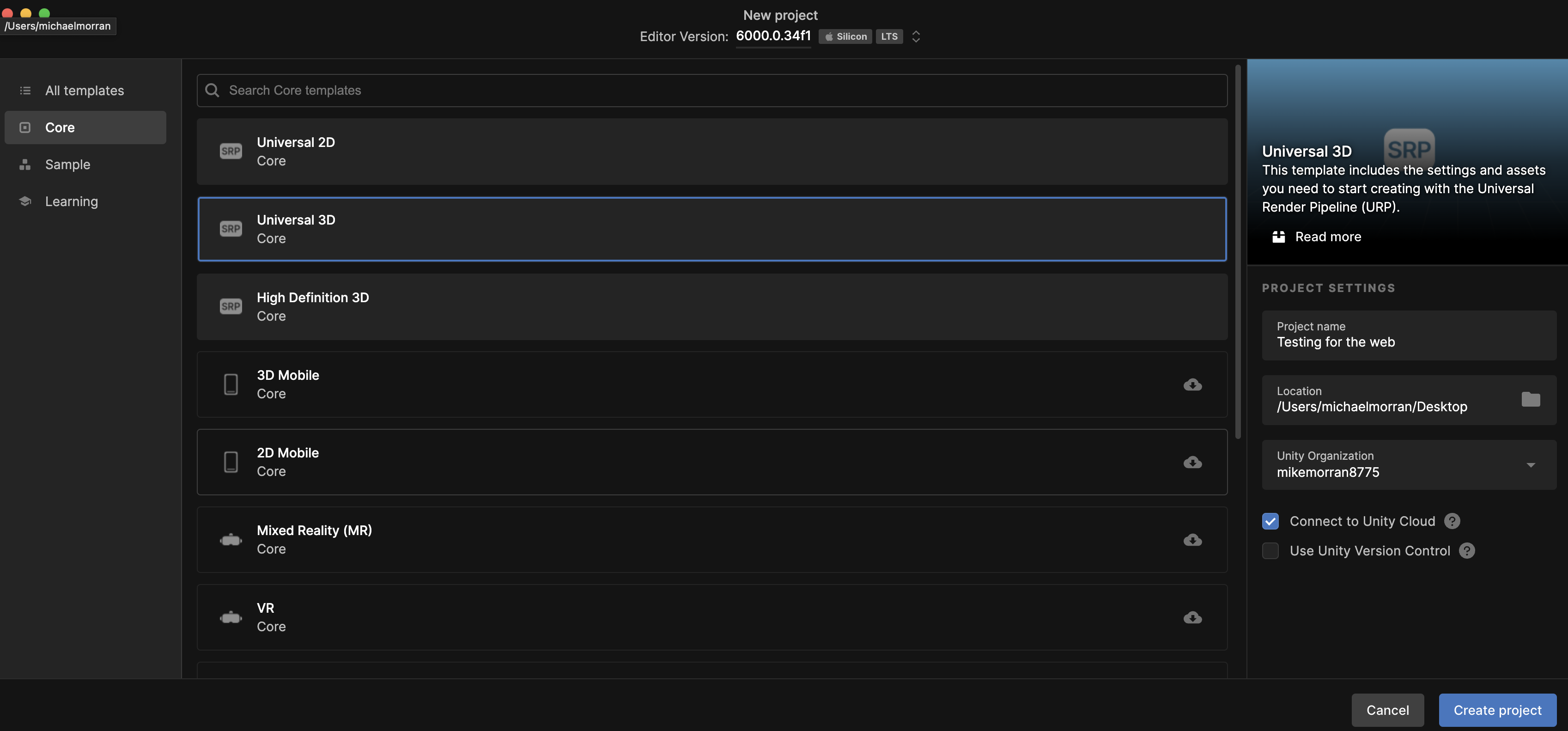
### Create a Unity Project
{% endstep %}
{% step %}
### Install the Unity Plugin
Navigate to Window > Package Manager > Unity Registry and search for "WebGL Publisher". Add the module to your project.
{% endstep %}
{% step %}
### (Optional) Enable Decompression Fallback
Compression is supported on VIVERSE, however you can enable fallback if you are encountering errors or would like to have it included. Navigate to Edit > Project Settings > Player > Web Settings > Publishing Settings and check "Decompression Fallback".
{% endstep %}
{% endstepper %}
## B. Build and Publish to VIVERSE
{% stepper %}
{% step %}
### Build your project
Navigate to Publish and select "WebGL Publish". In the pop-up, click "Build and Publish", selecting the desired folder for your build. When doing this for the first time, Unity will automatically publish to their web-servers for testing. For future builds, you can disable this behavior to just the builds without publishing.
{% endstep %}
{% step %}
### Install the VIVERSE CLI
In a terminal session, run `npm install -g @viverse/cli` to install the CLI globally. Make sure you are using at least node v22.
{% endstep %}
{% step %}
### Login to VIVERSE
In the terminal session, run `viverse-cli auth login` and enter your VIVERSE account email and password.
{% endstep %}
{% step %}
### Create VIVERSE App
In the terminal session, run `viverse-cli app create` . Once complete, copy the app ID to be used when publishing.
{% endstep %}
{% step %}
### Publish to VIVERSE
In the terminal session, run `viverse-cli app publish {path/to/unity/webgl/build} --app-id {your app id from step 4}` referencing folder containing the index.html of your Unity build.
{% endstep %}
{% step %}
### Test & Configure World Settings
Navigate to the preview url created for the world. You can also access the world and its settings in [studio.viverse.com/content](https://studio.viverse.com/content).
{% endstep %}
{% step %}
### Submit for Curation and Discovery
By default, worlds uploaded will only be accessible via preview urls. For placement and curation on our webpages, meaning your experience will be easier to share, please [submit for review](/publishing-with-your-viverse-account.md#upload).
{% endstep %}
{% step %}
### Iterate, Learn, Explore!
To add VIVERSE login, matchmaking, multiplayer, leaderboards, cloud save, or avatars, use the [VIVERSE Unity SDK](https://docs.viverse.com/developer-tools/unity/viverse-unity-sdk). Authentication is `AuthManager`, cloud save is `CloudSaveClient`, and leaderboards are `LeaderboardClient`. This page is packaging and upload. Do not create a `.jslib` for those features.
{% endstep %}
{% endstepper %}
---
# Agent Instructions
This documentation is published with GitBook. GitBook is the documentation platform designed so that both humans and AI agents can read, navigate, and reason over technical content effectively. Learn more at gitbook.com.
## Querying This Documentation
If you need additional information that is not directly available in this page, you can query the documentation by asking a question.
Perform an HTTP GET request on the following URL with the `ask` and `goal` query parameters:
```
GET https://docs.viverse.com/standalone-app-publishing/unitywebgl-examples/getting-started-with-unity-webgl.md?ask=&goal=
```
`ask` is the immediate question: it should be specific, self-contained, and written in natural language.
`goal` is what the user is ultimately trying to achieve, the reason they need the answer. Sharing it helps GitBook give you a better, more relevant answer. A goal is most helpful when it describes the outcome the user wants rather than restating the question. For example, with `ask=how do I create an API token`, a goal like `automate deployments from our CI pipeline` lets GitBook tailor the answer to that use case.
The response will contain a direct answer to the question and relevant excerpts and sources from the documentation.
Use this mechanism when the answer is not explicitly present in the current page, you need clarification or additional context, or you want to retrieve related documentation sections.